Surveys can be edited in Ecobot Manager or Ecobot Collector.
Ecobot Collector
Which surveys can be edited?
You'll see surveys appear in one of three states:
|
Tip: Surveys checked out for editing can only be checked in again from the same device.
How to gain editing access?
Check out an Available survey:
- To check out an available survey, tap its name in the Wetland Surveys list. You'll then see a black bar at the top of the screen, indicating that your survey is available for check out.
- Next tap the "Save Survey to Cloud" at the top-right, then Check Out Survey.
-
Finished editing on mobile? You must Check In the Survey to allow desktop editing access.
- Tap the "Save Survey to Cloud"
- Check In Survey, to allow for desktop editing access
Locked Projects:
- When you tap on the survey, you will see where it is locked and who is currently editing.
- For the project to become available for editing, it must be checked in from the device or Dashboard.
Ecobot Manager
Once you've checked out a survey for editing, you can begin modifying your sampling points, either individually, or across multiple sampling points at once using the bulk editor.
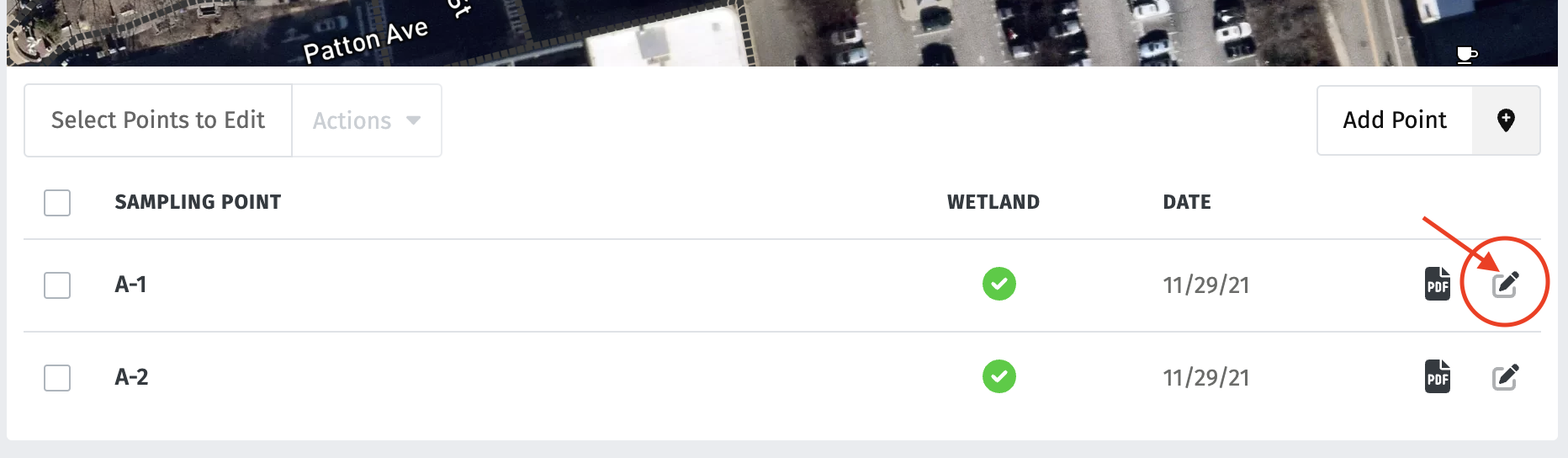
- To modify an individual point, scroll to the list of sampling points beneath the map, and select the editing icon.
- To quickly change top-of-form information across multiple forms, use the bulk editing tool. See KnowledgeBase article on bulk editing here.
Note: Only top-of-form information can be modified using the bulk editor. To modify field data, you must open the individual sampling point.
-
To QA and edit data, you can scroll through your data, starting with Sampling Point Information. Use shortcuts in the left navigation bar to jump quickly to the Hydrology, Soil, and Vegetation sections.
- When finished, click "Save Data" at the bottom right corner.
-
Click on the survey name to return to the survey page:
Finished editing? As a best practice, we recommend checking in the survey to ensure it can be accessed by a colleague or another device if necessary.
Tip: Some teams prefer to QA by reviewing their filled-out USACE forms, or the CSV file with point information. If you'd prefer to review your data this way, be sure to make any corrections directly to the data in Ecobot, and then regenerate your files when finished.