Use the bulk editor to quickly modify and standardize top-of-form information across multiple points.
To begin, your survey must be checked out for editing on Manager.
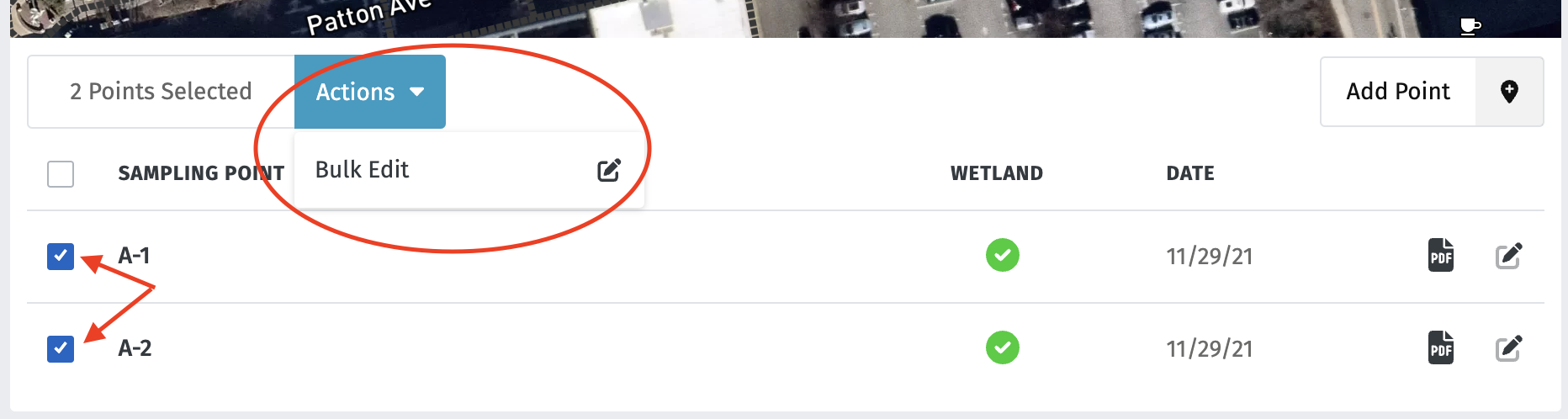
Select the points you would like to modify, and select "Bulk Edit" from the "Actions" dropdown menu.
From there, enter your changes for each field. Be sure to check "Confirm changes for all points displayed" for each field you change in order for the change to go through.
You also have the option to set this information as default, so that any new points you create within the survey will carry this information. To apply as default, check the box at the bottom of the screen. Hit "Save Data" when you're finished editing.
Note: Only top-of-form information can be modified using the bulk editor. To modify field data, you must open the individual sampling point. See KnowledgeBase article on QAing field data.
Tip: You can automatically populate location data using the lat-long for a sampling point, and then bulk edit all fields to match. See KnowledgeBase article on fetching location data.
- When finished, click "Save Data" at the bottom right corner.
-
Click on the survey name to return to the survey page.
All fields included in Bulk Edit
- Survey / Site
- Applicant / Owner
- Investigator(s)
- City/County
- State
- Section, Township, Range
- Subregion (LRR or MLRA)
- Datum