Use the bulk editor to quickly modify and standardize top-of-form information across multiple points.
To begin, your survey must be checked out for editing on Manager.
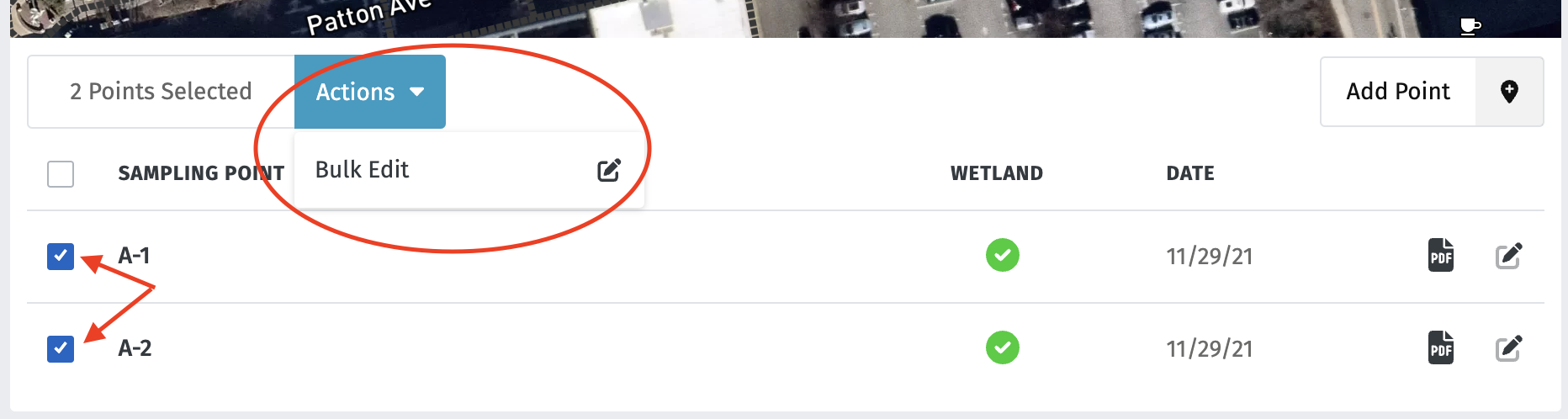
Select the points you would like to modify, and select "Bulk Edit" from the "Actions" dropdown menu.
From there, enter your changes for each field. Be sure to check "Confirm changes for all points displayed" for each field you change in order for the change to go through.
Hit "Save Data" when you're finished editing.
To set defaults for new points in a survey, use Set Defaults on the survey page — see Create a survey and set defaults.
Note: Only top-of-form information can be modified using the bulk editor. To modify field data, you must open the individual sampling point. See KnowledgeBase article on QAing field data.
Tip: You can automatically populate location data using the lat-long for a sampling point, and then bulk edit all fields to match. See KnowledgeBase article on fetching location data.
- When finished, click "Save Data" at the bottom right corner.
-
Click on the survey name to return to the survey page.
All fields included in Bulk Edit
- Survey / Site
- Applicant / Owner
- Investigator(s)
- City/County
- State
- Section, Township, Range
- Subregion (LRR or MLRA)
- Datum