During survey creation, upload a CSV file with point names and corresponding lat-long coordinates to quickly generate a series of sampling points.
From Ecobot Manager home screen, click 'Add Survey.'
Select your regional form and click 'Start' to proceed.
Beneath the survey information box, click 'Choose File' to select your CSV.
You can also click 'View our example CSV here' to ensure that your CSV is in the proper format, as below:
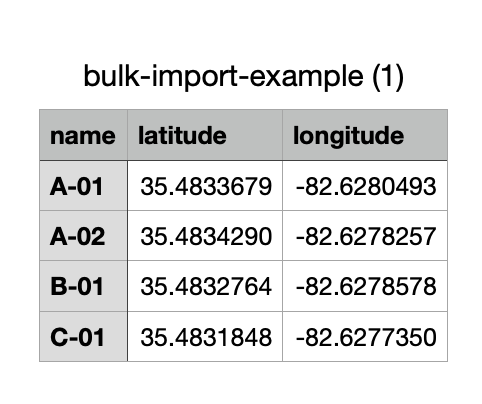
Once you select your CSV and click 'Add Survey,' you'll see a preview of your sampling point names and their corresponding GPS coordinates, plus the survey information you entered previously. If everything looks correct, click 'Confirm points, Create Survey.'
After a brief loading screen, you'll be able to view your sampling points on the survey map, as well as in a list below.
Upload CSV can only be used at the beginning of Surveys to import point name and lat/long. Data uploads aren't possible after creation, and no other data can be uploaded at this time.