Ecobot uses a Check-In and Check-Out system to manage survey access between Ecobot Collector (mobile) and Ecobot Manager (web). This ensures only one person edits a survey at a time, preventing data conflicts and maintaining version control.
When a survey is checked out, it’s editable on the device you are working on whether it is Collector or Manager. When checked in, the survey is stored in the Ecobot cloud and is available for check out from either Collector or Manager.
Collector
Understanding Check-In and Check-Out
Each survey in Collector displays a status icon to show whether it’s checked in, checked out, or locked. *The colors of the bars on the lefthand side is the survey status, and not the check-in check-out icon
- Green Unlock (Working) – The survey is checked out and editable on your device.
- Blank or Gray (Available) – The survey is checked in and available to download to another device.
- Gray with Lock Icon (Locked) – The survey is locked on Ecobot Manager, meaning someone else is editing it or it’s been manually locked from Manager.
See the status within the survey at the top
Checking Out a Survey
Check out a survey to make it editable in Collector. When checked out, the survey is locked in Ecobot Manager to prevent others from editing it at the same time.
- From the survey list in Collector, open the survey you want to edit.
- Tap Manage Survey in the top-right corner.
- In the Sync Survey Data menu, toggle Check Out Survey on.
- Tap Sync & Check-Out Survey to complete the process.
Your survey will now show as Working, indicating it’s checked out and editable.
Note: While a survey is checked out, other users will see it as locked in Ecobot Manager and won’t be able to make changes until you check it back in.
Checking In a Survey
When you finish your fieldwork, check in your survey to upload your data to Ecobot Manager. Checking in unlocks the survey so others can view or edit it.
- In Collector, open your active (checked-out) survey.
- Tap Manage Survey in the top-right corner.
- In the Sync Survey Data menu, toggle Check In Survey on.
- Tap Sync & Check-In Survey.
The survey will upload to Manager and switch to Available status.
Note: Checking in requires an internet connection. We recommend using Wi-Fi when uploading large photo sets.
Automatic Check-In on Sign Out
If you sign out of Ecobot Collector while a survey is checked out, Collector will automatically check the survey back in to Ecobot Manager before completing sign-out. This helps prevent surveys from being stranded on a device when fieldwork wraps up, a phone gets handed off, or a teammate has to switch devices unexpectedly.
What happens during automatic check-in
- Any survey currently in Working status on the device is synced and checked in.
- Photos and form data finish uploading before sign-out completes — make sure you have a stable internet connection (Wi-Fi recommended for large photo sets).
- Once check-in is complete, the surveys appear as Available in Ecobot Manager and on another mobile device.
Locked Surveys
If a survey shows as Locked, it means it’s currently being edited by another user or was manually locked in Ecobot Manager. You’ll see the lock icon and the user’s name who has it checked out.
You’ll be able to open and view the survey, but editing will be disabled until it’s checked back in, but we give you the information you need to contact the individual that currently has the survey checked out.
Tips for Managing Survey Access
- Always check in surveys after completing fieldwork so teammates can access them in Manager.
- If a user forgets to check in a survey, an account admin can perform a Force Check-In in Ecobot Manager. See Transfer, Merge, and Check-In Surveys.
Manager
Just as in the mobile app, surveys in your list will appear in one of three states, all of which are viewable:
- Editing (Unlocked icon). You are actively editing. Newly created surveys will default to this setting until checked in.
- Locked (Grayed-out survey name): The survey is checked out somewhere else. Find out by who and on what device by selecting the survey and viewing the checkout status box on the right of the screen.
- Available (No icon): You can check the survey out by clicking on the survey name and navigating to the check in/out box at the right of the screen below the map toggles (see below).
- Select a survey to see its Survey Details page. On the right of the screen, beneath the map toggles, you will see additional details about the survey and its editing status.
- It will appear in one of these three states:


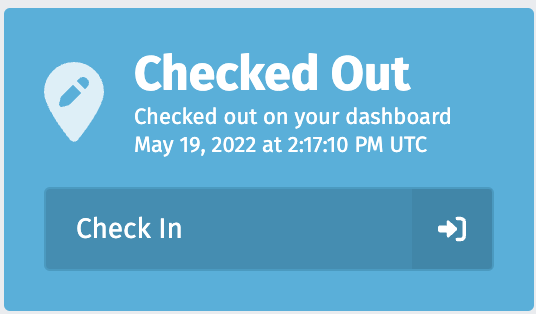
Click 'Check In' or 'Check Out' to perform your desired action. Once the survey is Checked Out, you can begin editing.
Locate Device Information for Checked Out Surveys in Ecobot Manager
If Surveys are checked out in your account and you want to check them back in but aren't sure where they are, you can view this information from Ecobot Manager.